“So, you want to perform a budget planning to receive better overview of your cost distribution on your project? Yeah, sure we built something like this since PSA v2 (Project Service Automation, former name of Project Operations, now v4) for other customers”
This is a thing for the past now.
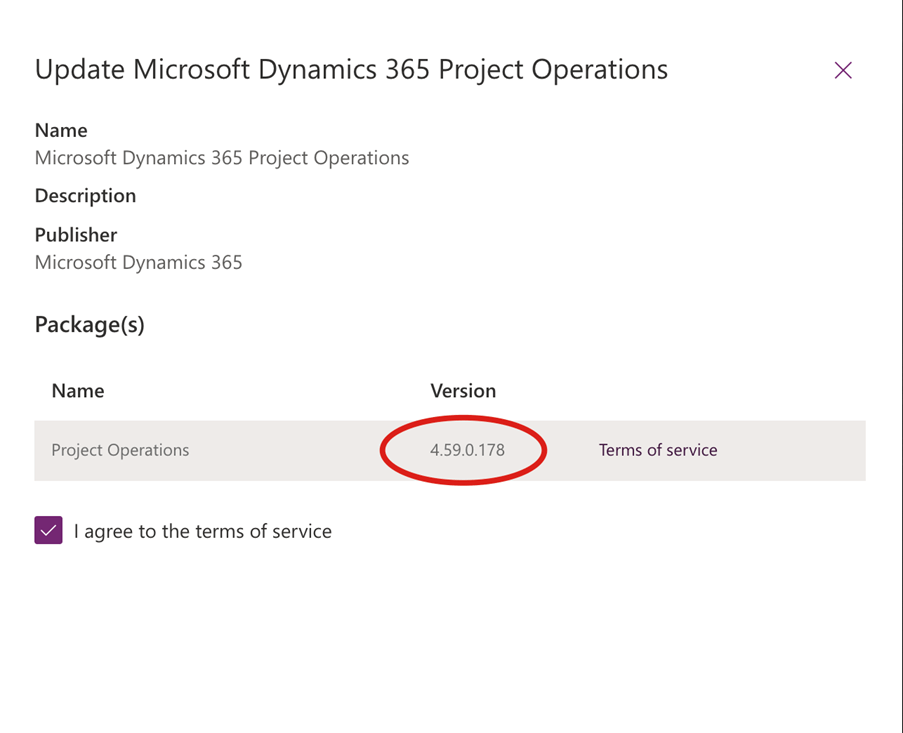
Microsoft just released their latest update for Project Operations (v. 4.59.0.178) including a new opt-in Project Budgeting feature.

Important note: Before activating an opt-in feature in your production, please make sure you test and verify this functionality in a UAT / Sandbox Environment for your business cases.
Project Operations now allows you to manage your budget per project level. For the first step, it’s a manual process. But you can already track different types of budgets in connection with your planned project tasks, resources, resource units and different transaction types and categories.
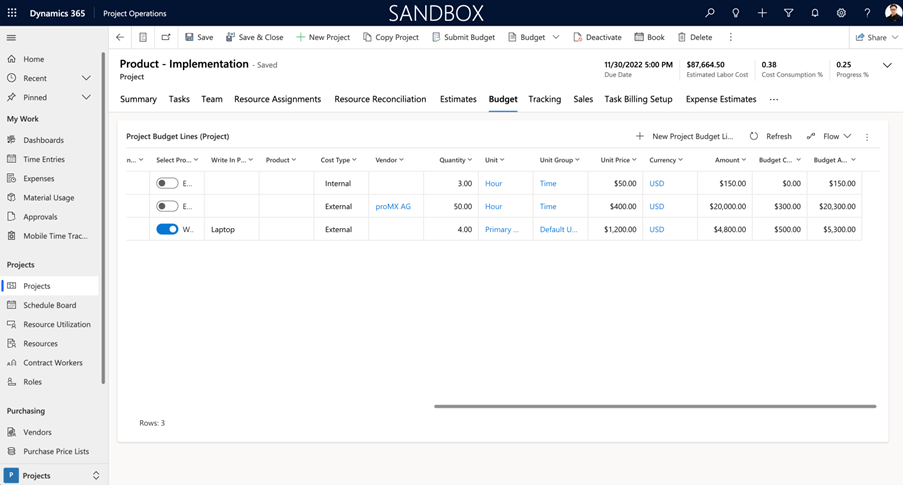
As mentioned in the beginning, we already built similar functionality in our customer projects. It all fits very well in the new Power Apps Grid Control design and is a quite useful addition for the project manager to keep track and overview on their budget costs.
In this early version of the feature, you have already the possibility to create a manual budget, delete and submit it later (which makes your budget calculation read only). I assume some automation with base of the project plan could be added in the next feature releases.
The tab “Budget” is only visible after opt-in for the functionality and creating a budget for the project itself.
How to set up
First, update the Microsoft Dynamics 365 Project Operations solution in your PPAC to version 4.59.0.178:
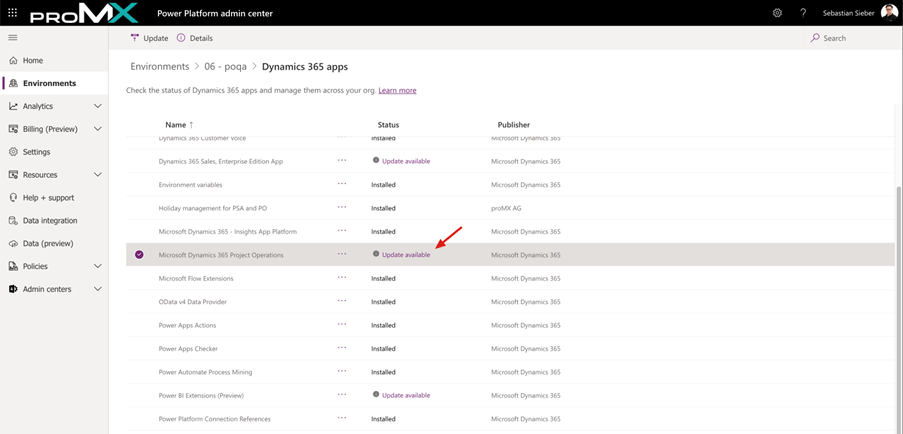
Once the update is successful done, open the Environment and navigate to the Settings Area of the default Project Operations Model Driven App and locate the Parameter. All opt-in Features are hidden in the drop down “Feature Control” here
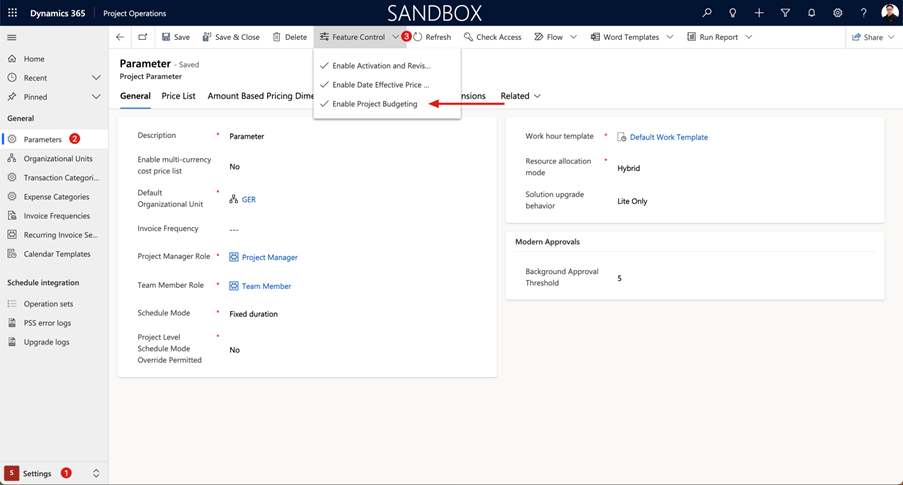
Next to Quote Revision and Date Effective Price overrides you can find the Project Budgeting option. (It can look different for you, in case you activated any other feature here already)
Important: it’s a one-timer – you cannot revert the setting for your environment after activation
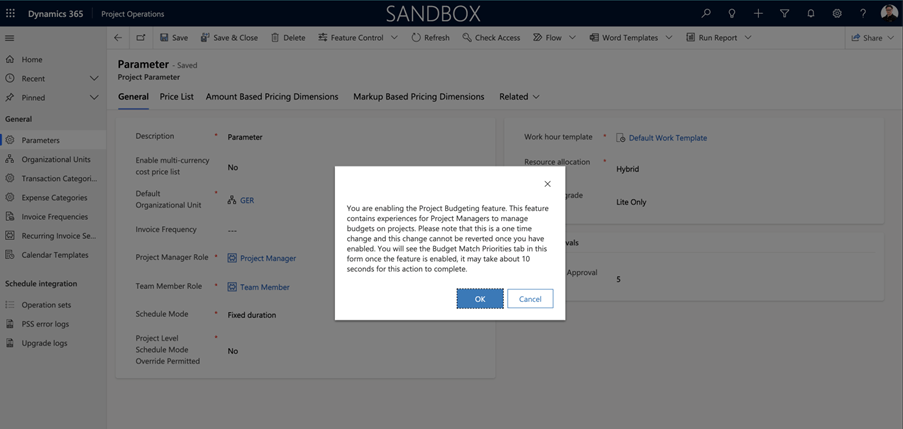
After activation you find a new Tab on the Parameter table called “Budget Match Priorities”.
You can find here the different priority settings for out of the box fields and their Transaction classes and context (cost / sales)

We leave everything set to default for now and move on to our beloved project.
Project Budget
Here we can find a new menu ribbon button available for us: Create Budget
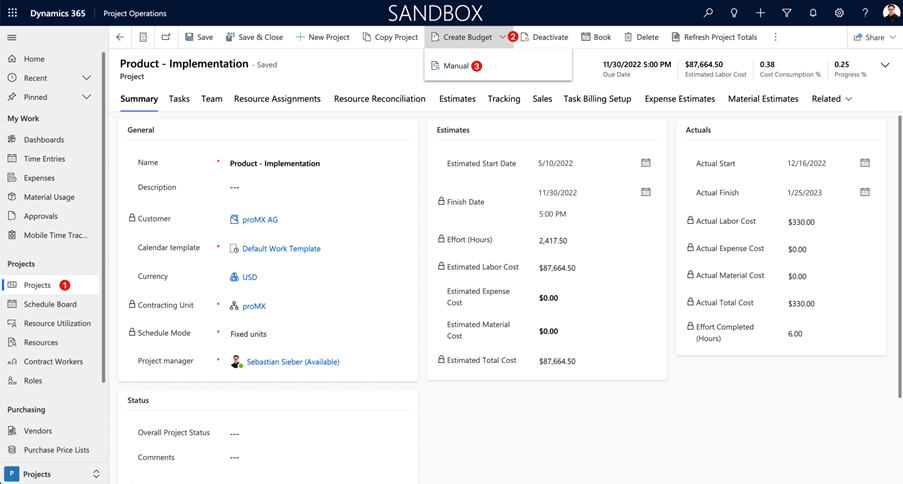
On expanding we have only the option for manual budget creation available (this is the spot where I could imagine some automated budget based on the project plan or similar).
Once added the manual Budget a new tab next to Estimates is available:
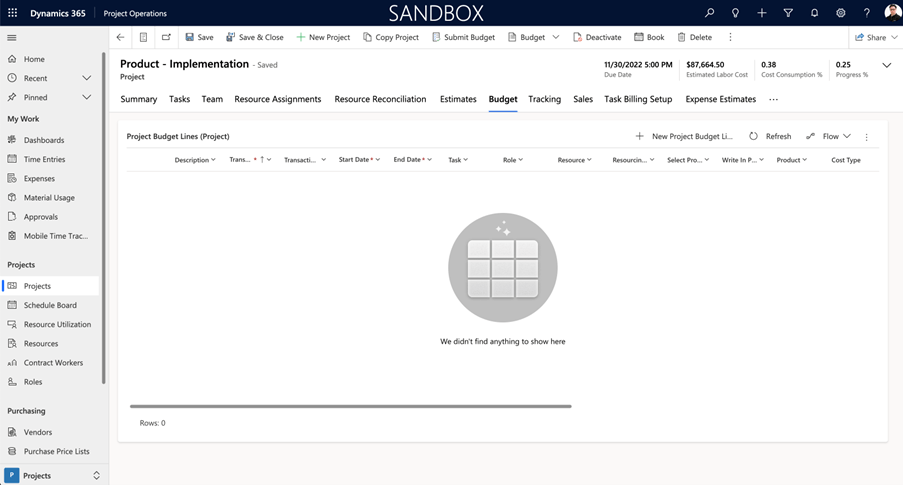
And that’s it, you’re good to go to add your budget lines to your Project and Project Task context 😀
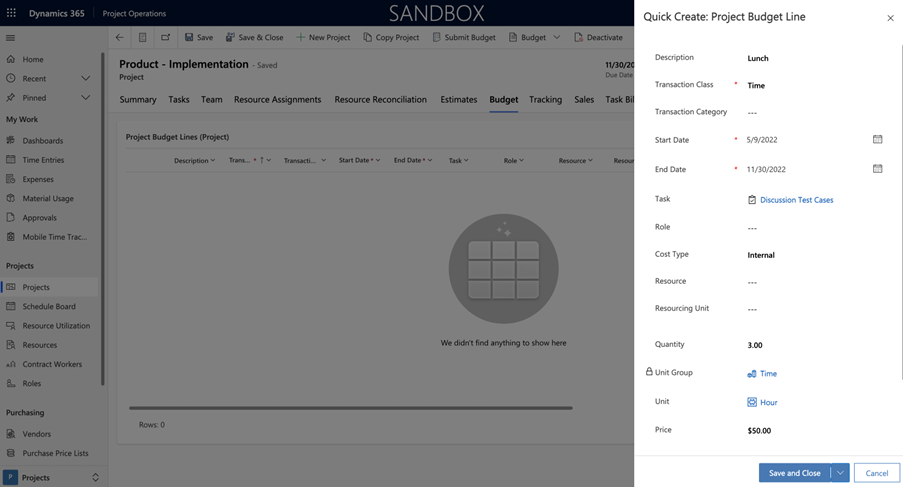
Save happens automatically, you can quickly identify a record was changed by the small icon

If there should be any issue with the synchronization the grid will tell you with that small explanation mark

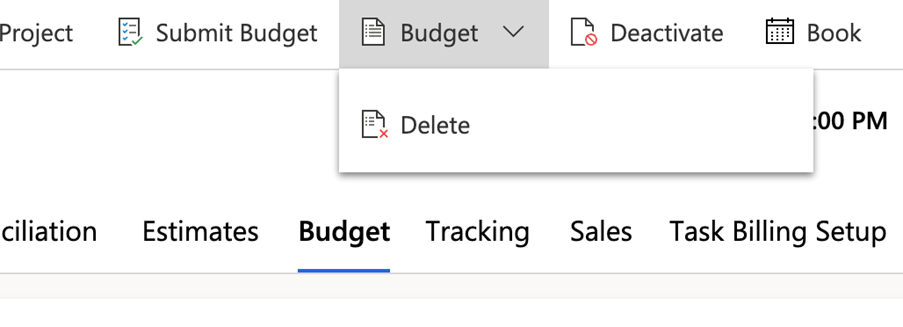
You can delete or submit your budget at any time after creation
After Submitting the editable grid options, you had before, it will turn read only. As well it’s now possible to Approve or Reject the budget

Reject will set the budget back to pre-submit state. While Approving will provide two new views to track your budget across the project execution. One view for costs and another one for quantity.

Should you decide to delete the budget in the pre-submit stage, the budget tab will be hidden again, and you have the possibility to start over again 😀
Conclusion
Really looking forward what else can be happen with this new feature. I think we only scratched on the surface. Will keep you posted about more details as soon as I had the chance to play around a bit more.
Hopefully you enjoyed that first look with me, and what a great addition to the project management capabilities of Project Operations
 365 Power