Back in the days of CRM aka d365 Dynamics we could connect to our SQL server and work with data(OnPremise Server acess, loved it). With d365 being an online service this access was cut off and we had to relay on oData queries.
Nowadays there is the new TDS enabled for each environment per default.
It adds an virtual SQL layer to our dataverse we can connect to and work with. The dataverse connector acts similar so lets asume they are the same.
In the next elements i will demonstrate why they should not be used, or used wisely.
SQL Connect
With the TDS endpoint it is possible to connect using sql with SSMS.
It is great to write your queries and get direct access to the tables and attributes. Benefit you can see existing indexes but keep in mind it is a read only view. Also not all of the SQL available functions are working.

Use this great feature to write all the queries you love to get your data.
Personal: I love, love, love this thing. I was wating so long to get my SQL back.
Power BI – Desktop
Power BI can connect to a variaty of data. It supports direct SQL and also Dataverse.
For our test we will use the direct SQL and the dataverse connections.
SQL Server
To connect the data with SQL server, we simply need our system url. Do not add the “https”, we only need the basic things.
You can leave the default settings. If we use Import or Direct Query does not take any effect. To show data we will go with the import in our scenario.
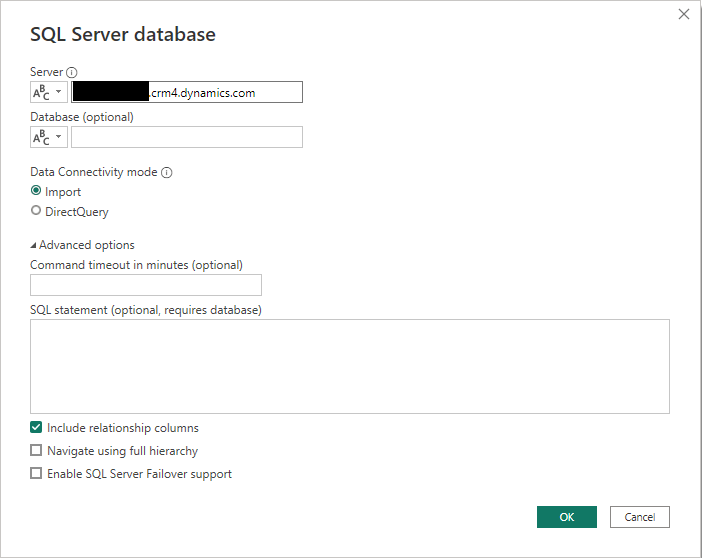
Complete the login with your account and grab some tables.
Dataverse
To connect the data with dataverse, we need again our system url.
There is a difference right now, when you are logged in with your user in Power BI Desktop you will get a list of available systems.
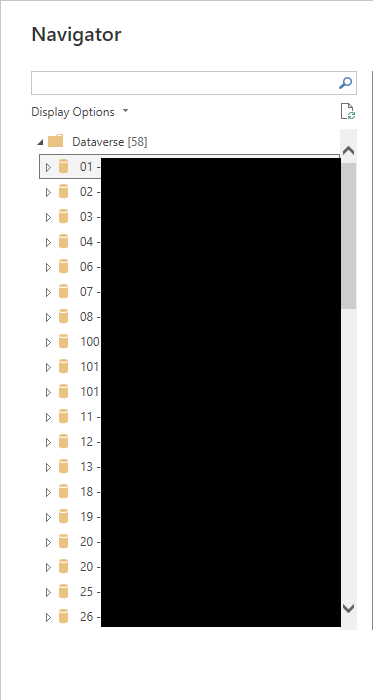
There is a chance that the system is asking for an URL. In that case, as we did in the SQL Part, give the System address without the “htts” thing.
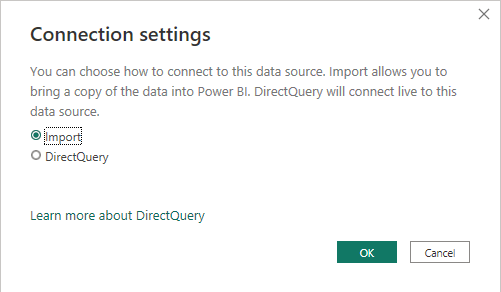
On success after we logged in we are asked again if we want to import or directly query our data.
Its all about data
Now we know howto connect to our Dynamics environment and we can load the data. In a test or dev enrionment this is all fine while there will be nothing.
Now Imagine we move to production where we have 500k of data rows. Not that much for a report but just as an example.
SSMS – data
Just for demonstration we would query the workingtime of all our emplyees overall. With some filter on dates this is a common task in the daily reporting but we get a direct exception that “Return records size cannot exceed 83886080. Make sure to filter result set to tailor it to your report.“

Well this sample is just to demonstrate the root issue. I cannot show it with real data, unfortunate.
We are only allowed to get 80MB of data…….
To work around this limit, optimize the query adding filters and dropping columns so that the query returns less data.
Microsoft Learn
Well, at a sertain point, there is no way to further filter the data, we just have that much data!
SSMS – TimeOut
When we know about the restriction in data, first idea using aggregates.
It will not resolve the root issue but maybe help to get some figures out of the system. In fact the Endpoint only provides 10 minutes of service….
While there is no way to create our own view for d365 we put all together and query the data.
In case we have ‘heavy’ queries we need to consider the 10 minute Time Out of this service. So long running queries under the 80MB limit will be cut off also!
Currently i cannot Demo this part while i was already removing all my queries. Will deliver this when i trigger it again 🤣
Conclusion
With the given examples i wanted to show why you should not use the new connectors when you build reports. They work nicely in development but lack in production where we have the data.
There is one exception where is use it:
Get the Optionset Values and Names is supported with this connector. And tbh it should stick into 80MB.
So rule of thumb, do not use this new Connector when building Reports. Think big, think data.
Imagine you would build a nice Report using SQL or Dataverse Connector and it is working fine. After 2 Years having the Data, Customer starts to complain and you need to fix it.
Never mind, i forbid my team to use this connector due to its limits. Keep going with the oData, it simply works.
And tell all your Customers that there is no live reporting on Data!

