Calendar retrieve – the challenge
In every customer project and implementation of Dynamics 365 (D365) with or without Project Operations (PO), a common requirement is the reporting of Users available working hours vs the schedule.
When we do not have PO we report against the Bookings, when we have PO we report against Bookings and Assignments.
The tricky part is to get details on the calendar. It is no free accessible entity we can report on.
There is a way to call the Web API and expand the calendar to get the full details. Here we only need the “calendarid” from our Resource (bookableresource) with the date range we are using in our report and we are ready to go.
ExpandCalendar call – Failing One
In our first implementation we combine the address within our Power BI using a small function. With this it is easier later, to retrieve our Resources using the Dataverse Connector and Invoke our little function.
GetCalendar
let
    Quelle = (CalendarID as text, StartDate as datetime, EndDate as datetime) as table =>
        let
            //ID "E88E51F8-7D0B-4A34-937B-***"
            //Start #datetime(2022, 5, 4, 0, 0, 0)
            //End #datetime(2022, 5, 19, 0, 0, 0)
            StartText = DateTime.ToText(StartDate, [Format = "yyyy-MM-ddThh:mmZ"]),
            EndText = DateTime.ToText(EndDate, [Format = "yyyy-MM-ddThh:mmZ"]),
            URL = "https://"
                & _ORG
                & "/api/data/v9.1/calendars("
                & CalendarID
                & ")/Microsoft.Dynamics.CRM.ExpandCalendar(Start="
                & StartText
                & ",End="
                & EndText
                & ")",
            Source = OData.Feed(URL, null, [Implementation = "2.0"]),
            result = Source[result]
        in
            result
in
    Quelle
With the handling we see, that the Dataverse Connection is stored as a Parameter that we can change the environments very easy. 3 Parameters are required, calendarid, start and end date.
https://***.crm4.dynamics.com/api/data/v9.1/calendars(df7f69fe-55d5-4407-8fbc-833db904ca20)/Microsoft.Dynamics.CRM.ExpandCalendar(Start=2021-12-01T00:00:00Z,End=2021-12-31T00:00:00Z)The values we are adding to the Resource retrieve, where we add Min and Max Dates of the Datetable and the calendarid of our Resources.
Power BI Desktop
The preview of our data in the Desktop Designer of Power BI is working and we structure our data model.

Power BI Service
After creating the Report and publishing it to our Workspace, we complete the steps by configuring the scheduled refresh. Now we are running in an Issue of “data sources currently don’t support refresh”
Oops, we made it wrong. After Review of the Data source settings in our report, we figured out it will not work like that.
Expand Calendar call – Working One
After some research and experiments to structure the Web API address using “Web.Contents” found a nice article from “The CRM Chap” handling this for us.
So we wrote a new function using “Web.Contents” to build the URL more dynamic.
GetCalendar
let
    Source = (calendarid as text, start as date, end as date) =>
        let
            //built Web API address
            DataverseAPIAddress = "https://" & _ORG & "/api/data/v9.1",
            //call calendar function
            relativePath = "calendars(" & calendarid & ")/Microsoft.Dynamics.CRM.ExpandCalendar(Start=@start,End=@end)",
            queryStart = Record.AddField([], "@start", Date.ToText(start, "yyyy-MM-dd")),
            query = Record.AddField(queryStart, "@end", Date.ToText(end, "yyyy-MM-dd")),
            //combine address
            raw = Web.Contents(
                DataverseAPIAddress,
                [
                    RelativePath = relativePath,
                    Query = query
                ]
            ),
            json = Json.Document(raw),
            result = json[result]
        in
            result
in
    Source
Power BI Desktop
We retrieve the Resource and add Min Max Dates and calendarid to them. All the other details we remove while we want to build a calendar entity. With the inherit of GetCalendar function and expanding our columns we have again a working preview.
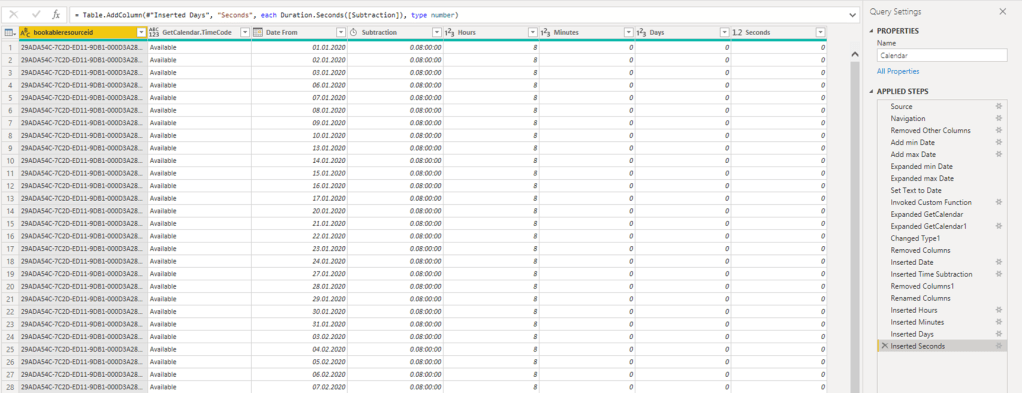
In the picture we can see another difference on close look: The Diff is of type “Duration”. To calculate the daily working hours we need to extract days, hours, minutes and seconds (this we could skip) and calculate the hours of type decimal.
Workingtime in hours
Work hrs =
SUM('Calendar'[Hours])+
SUM('Calendar'[Minutes])/60+
SUM('Calendar'[Days])*24
Power BI Service
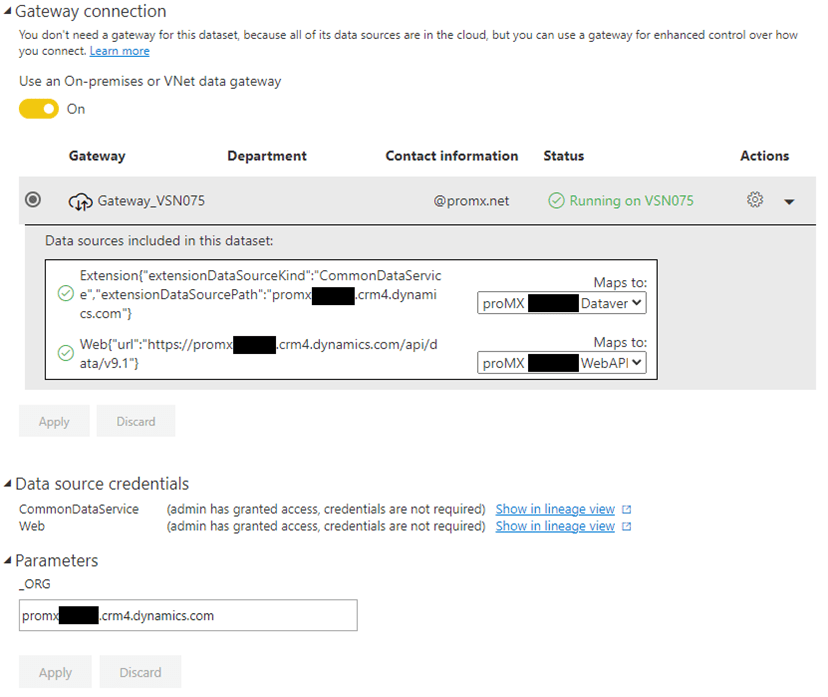
As a final setup we need to add our Data Sources to the Gateway. Without adding it to the Gateway we got a very strange “Failure details: Information is needed in order to combine data” error.
Adding “Organizational” Level to the Data Sources was not enough. Adding it to the Gateway made the trick.
Reporting
Having our Resource Calendars in place providing the Workinghours as Target, we need the Duration to create a first meaningful Reporting. Now it is easy to load Time Entries to report on the sum of duration divided by 60.
We can calculate based on the different approval states to have a meaningful report.
On the other hand Bookings could be reported to display a future Forecast where Resources were added to a Project.
This reporting is very straight forward, add the related entities and connect it with your central Date Table. Bookings and Time Entries are locked for every single day. There Is no need to calculate a Date Range.

Assignment retrieve
For a more detailed Project reporting it is better to use the Project Assignments. With this it is possible to use the forecast, if Generic Resource is set or the detailed plan of a Resource.
The Project Assignment Contour Edit is already available and therefore we use them to get the full details.
The problem with the Assignment is the detail stored as Contour. It is a JSON formatted long list of elements stored as text.
[
    {
        "End": "\/Date(1663945200000)\/",
        "Hours": 4.4,
        "Start": "\/Date(1663916400000)\/"
    },
    {
        "End": "\/Date(1664204400000)\/",
        "Hours": 4.4,
        "Start": "\/Date(1664175600000)\/"
    },
    {
        "End": "\/Date(1664290800000)\/",
        "Hours": 4.4,
        "Start": "\/Date(1664262000000)\/"
    },
    {
        "End": "\/Date(1664377200000)\/",
        "Hours": 4.4,
        "Start": "\/Date(1664348400000)\/"
    },
    {
        "End": "\/Date(1664463600000)\/",
        "Hours": 4.4,
        "Start": "\/Date(1664434800000)\/"
    }
]
As we can see, the Start and Enddate has a special format. Adding a new function to our Power BI to convert these values. The format is similar like we know from Excel. Dates are saved as Integer values based on “Day 0”. It is also possible to convert the Value based on Power BI commands.
Parse JSON
We retrieve the Project Assignments (msdyn_resourceassignment) and use the “msdyn_plannedwork” contour. Power BI supports adding a new Column with “Parse JSON”.
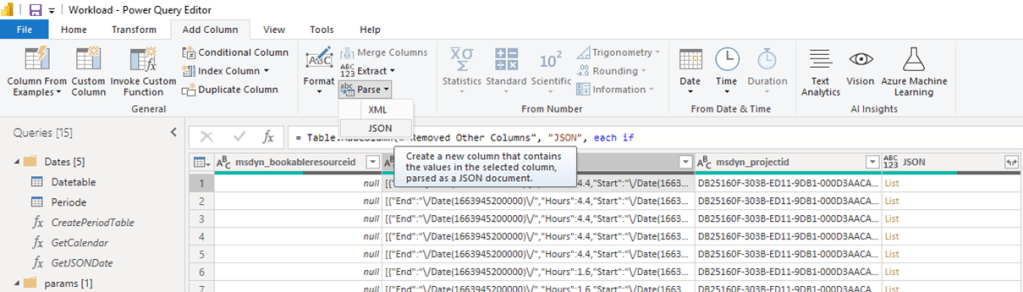
Now it is easy to expand the JSON Start and JSON Hours. The Date is generated for every single day of the Project Task runtime. Start Date and End Date are the same.
For the Date it would be enough to remove the Text and Calculate the Date:
1st January 1970 + $Date / 1000 / 86400
1st January 1970 + 1663916400000/ 1000 / 86400 => 23rd September 2022
Power Query
#"Replaced Value" = Table.ReplaceValue(#"Removed Columns1","/Date(","",Replacer.ReplaceText,{"JSON.Start - Copy"}),
#"Replaced Value1" = Table.ReplaceValue(#"Replaced Value",")/","",Replacer.ReplaceText,{"JSON.Start - Copy"}),
#"Changed Type1" = Table.TransformColumnTypes(#"Replaced Value1",{{"JSON.Start - Copy", Int64.Type}}),
#"Inserted Division" = Table.AddColumn(#"Changed Type1", "Division", each [#"JSON.Start - Copy"] / 1000, type number),
#"Divided Column" = Table.TransformColumns(#"Inserted Division", {{"Division", each _ / 86400, type number}}),
#"Added Custom" = Table.AddColumn(#"Divided Column", "Custom", each Date.From("1.1.1970")),
#"Changed Type2" = Table.TransformColumnTypes(#"Added Custom",{{"Custom", Int64.Type}}),
#"Added Custom1" = Table.AddColumn(#"Changed Type2", "Custom.1", each [Custom]+[Division]),
#"Changed Type3" = Table.TransformColumnTypes(#"Added Custom1",{{"Custom.1", type date}})
GetJSONDate
let
    DateFromJson = (date as any) as any =>
        let
            //get the JSON date as unformatted text
            input = if date is null then "/Date(00000000000000)/" else date,
            //we will replace the int value 1663916400000
            Stripped =
                if  Text.StartsWith(input, "/Date(")
                    and
                    Text.EndsWith(input, ")/")
                    then
                        Text.Range(input, 6, Text.Length(input) - 8)
                    else
                        error "Not a date",
            //calculate the ticks to get the date value
            Result = Number.From(Date.FromText("1/1/1970")) + Number.FromText(Stripped)/1000/86400 ,
            dOut = Date.From(Result),
            output = if Date.Year(dOut) = 1970 then null else dOut
        in
            output
in
    DateFromJson
Conclusion
The shown methods i am using in several customer projects and for the internal reporting as well. Based on the resources the loading is a little bit slow while using the oData retrieve for the calendar.
When having 3 years with full employee list in place this can take a while.
Using the calendar retrieve function and the expand JSON i decided to switch the full report to use oData connection only. I am not using dataverse connector in my Power BI due to their limitation of 10 minutes time out or 70MB max retrieve, what is ridicluous for reporting. Except the combination to build the Optionset Name pairs. I think this should work within 10 min or 70 MB.
I plan to upload a Power BI template of this method when i finish a default OOTB sample.
For the playthrough i added a Template file where i was using the dataverse connector initially until reaching the limits and switched to oData. But there you can evaluate the power query function. Calendar Retrieve PBIT
 365 Power